
- 1,000,000+ installs
- 4.5★ from 14,596 ratings
- Android 9.0+
- On Google Play since 2015
Work in timed sessions — and see where the hours went
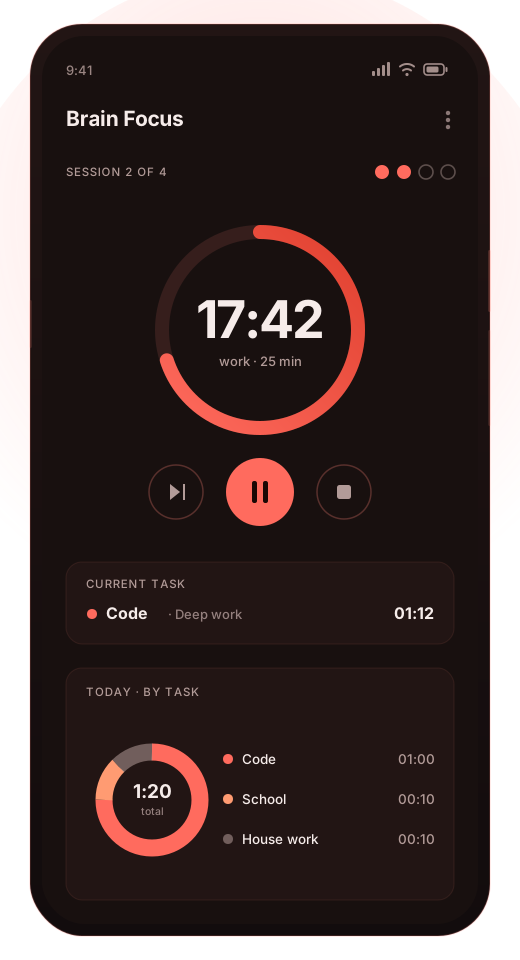
Brain Focus runs the Pomodoro technique, the 52/17 split, or whatever durations you decide on. Each session is logged against a task, so at the end of the day you have an actual record instead of an impression.
Free to install · contains ads · an optional Pro purchase removes them and adds backup, widgets and CSV export — what that costs
- 1M+installs on Google Play
- 4.5★14,596 ratings
- 30+interface languages
- 9.0+Android version needed
Features
What the app actually does
A timer is the easy part. The useful part is what happens around it — what the session is attributed to, what the phone is allowed to do while it runs, and what you can read back afterwards.
Pomodoro, 52/17, or your own numbers
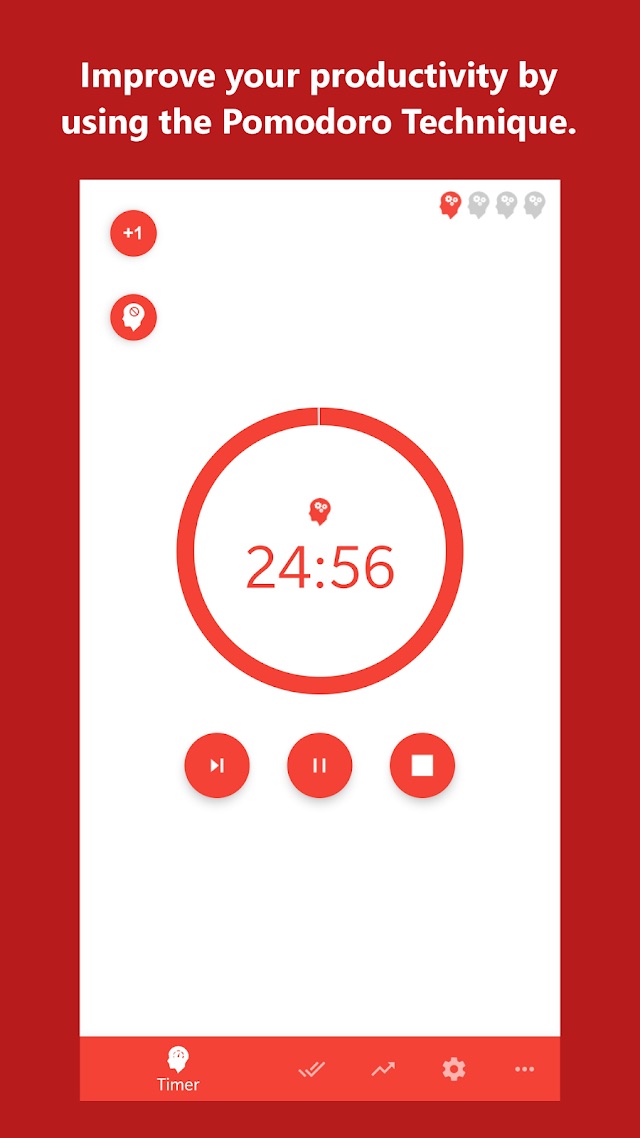
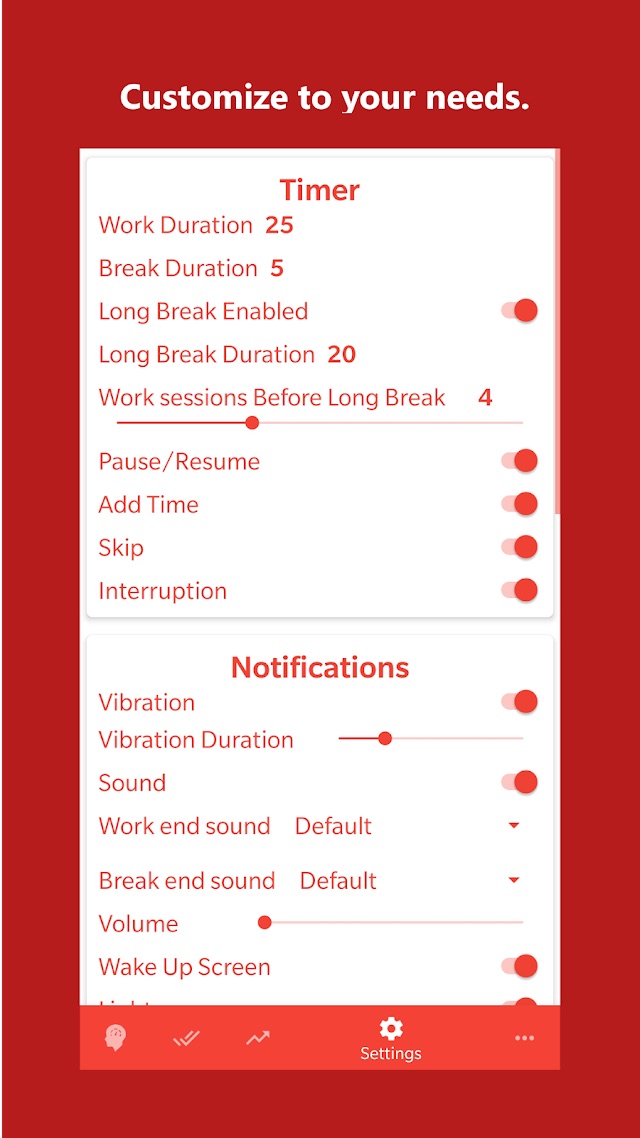
Work duration, break duration, long break duration and how many sessions come before a long break are all set by you. The classic 25/5 and the 52/17 split are two presets among many, not a constraint — if you work in 45-minute blocks, use 45.
Time tracked per task
Every session is logged against a task, and tasks are grouped into categories. Each task can carry its own settings, so a 25-minute writing block and a 50-minute study block do not have to share one configuration.
Statistics you can read back
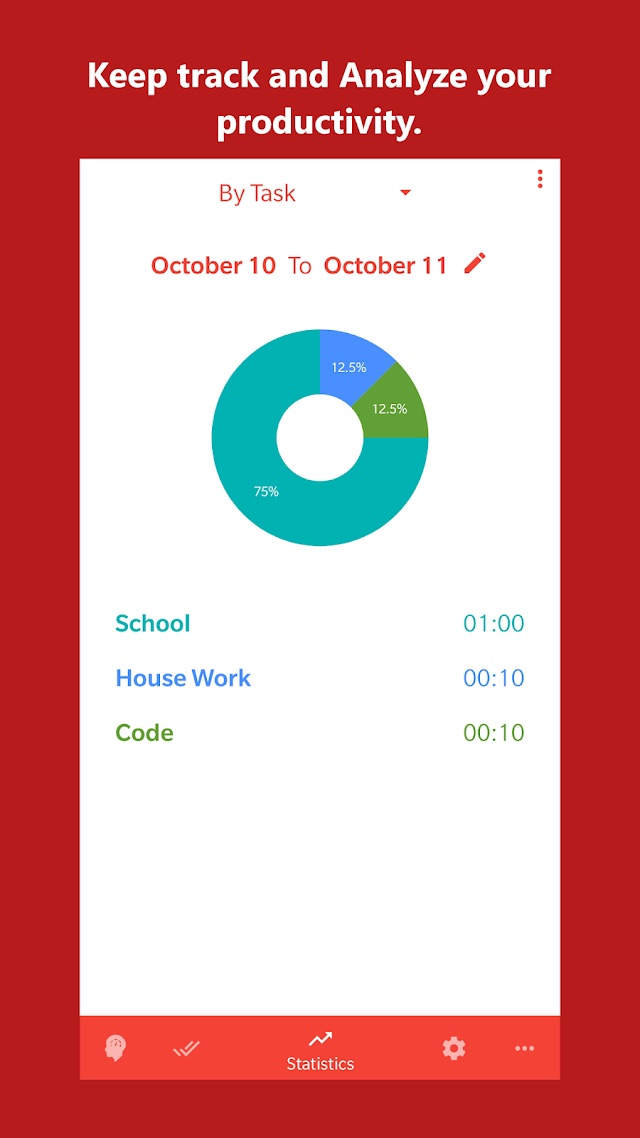
Pick a date range and the app shows how the time split across tasks, as a chart and as a list with hours against each name. This is the part that answers “where did Tuesday go” with something better than a guess.
Block the apps you name
Choose which applications should be unavailable while a work session is running. You pick them from a list; they come back on their own when the session ends. It is a speed bump against reflex, which is usually what is actually needed.
Quiet the phone while you work
A work session can turn the sound off and drop the Wi-Fi connection for its duration, then restore both at the break. Notifications that cannot reach you do not interrupt you.
Controls where you already are
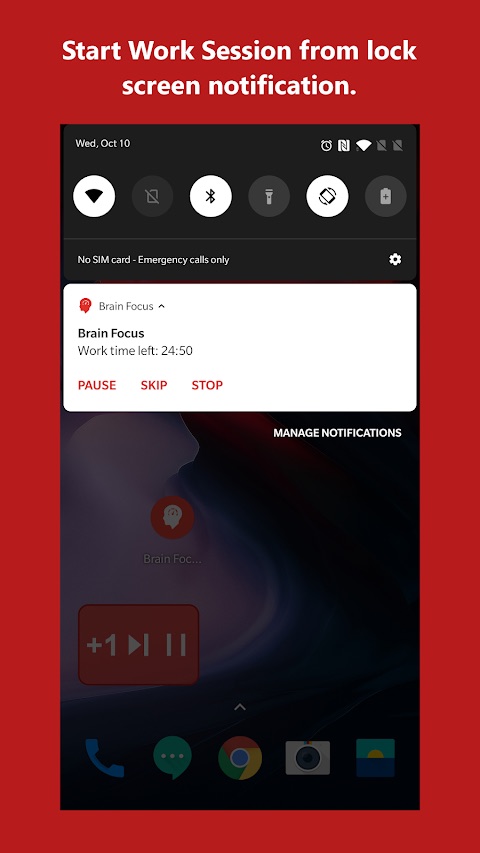
Pause, skip, stop or add time straight from the notification, including on the lock screen, and from a home-screen widget in the Pro version. You should not have to open an app to stop a timer.
What it is not
Brain Focus is a timer and a time log. It is not a habit tracker, not a parental control, not a system-level blocker that survives being uninstalled, and not a treatment or a diagnostic tool for anything. It does not make you concentrate — it structures the time and records what happened, and the concentrating is still your job.
Getting started
Three steps, no account needed
-
Install from Google Play
One tap from the button on this page. No registration, no sign-in, and no file to download from anywhere else.
-
Set the durations and name a task
Start from 25/5 if you have no opinion yet. Create a task for whatever you are about to do, so that the time has somewhere to land.
-
Start the session
Work until the bell, take the break it gives you, repeat. After four sessions you get the long one — or however many you configured.
The full guide covers each screen, including the settings people usually get wrong the first time.
Screens
The interface
Screenshots as published by the developer on the Google Play listing, captions and all. Layout and wording differ a little between Android versions and themes — the app ships several, including a dark one.
Comparison
Why not just the clock app already on your phone?
For a single 25-minute block, the built-in timer is genuinely fine, and it is worth saying so before asking anyone to install anything. The difference shows up once you do this daily.
| What you want | The built-in timer | Brain Focus |
|---|---|---|
| Count down 25 minutes | Does it perfectly | Does it too |
| Start the break automatically when work ends | Set the next timer yourself | Work and break alternate on their own, with a long break every N sessions |
| Know how many hours went into a particular thing | Not recorded anywhere | Every session is logged against a task and a category |
| Compare this week with last | Nothing to compare | Statistics over a date range, split by task |
| Stop yourself opening the usual apps | Nothing stops you | Chosen apps are blocked for the length of the session |
| Different settings for different kinds of work | One timer, set each time | Per-task settings, kept between sessions |
Pricing
What it costs, stated plainly
Free to install
The timer, the tasks, the statistics, the app blocking and the quiet-mode settings all work without paying. There is no trial that turns into a charge and no account to create.
The Google Play listing carries a Contains ads badge: the free version is funded by advertising shown inside the app.
Optional Pro purchase
The listing also carries an In-app purchases badge, priced by Google Play at $0.99–$10.00 per item. The developer describes the Pro version as removing ads and adding home-screen widgets, more than three categories, CSV export and backup.
These are purchases, not a subscription. Prices are set on Google Play and shown in your own currency there — treat the figures here as indicative.
Payments, refunds and purchase history are handled entirely by Google Play. This website never takes a payment and cannot see what you have bought.
Permissions and data
What the app asks for, and why
Some of these look heavier than a timer should need, and each one has a reason. The authoritative list is on the Play listing under Data safety and App permissions.
| Permission | What it is for |
|---|---|
| Retrieve running apps | Needed to notice that a blocked application has been opened during a work session. This is the permission behind the app-blocking feature; without it there is nothing to block. |
| Connect and disconnect from Wi-Fi, view Wi-Fi connections | Used by the option that drops the Wi-Fi connection for the length of a work session and restores it afterwards. |
| Read and modify USB storage | Writes the CSV export and the backup file, and reads a backup when restoring. Both are Pro features. |
| Full network access, view network connections | Serves the advertising in the free version and checks connectivity. |
| Prevent the device from sleeping, control vibration | Keeps a running session counting, and drives the alert at the end of one. |
The data safety declaration, in plain words
On Google Play the developer declares that the app shares no data with third parties, and that it may collect approximate location, used for analytics and personalisation. That is an unusual thing for a timer to need, and it comes from the advertising and analytics components rather than the timer itself.
The same declaration states that data is encrypted in transit and that data cannot be deleted on request. If that matters to you, it is better known now than after installing. The app has its own privacy policy, separate from this website’s, and the current version of the declaration is always the one on the Play listing.
FAQ
Common questions
Is the app still being updated?
Not frequently. The Google Play listing shows the last update in June 2020, and it requires Android 9.0 or later. It remains published and installable from the listing, but you should treat it as a stable, finished tool rather than one in active development — and check on the listing that it is compatible with your device before counting on it. More on what that means.
Does blocking apps really stop me?
It stops the reflex, not a determined person. A blocked app is unavailable for the length of the session; you can still end the session and open it. That gap between impulse and action is the whole mechanism, and for most people it is enough.
Is the Pomodoro technique 25 minutes or can I change it?
Change it. The classic figure is 25 minutes of work and 5 of break, and the 52/17 split is another well-known one, but the app lets you set work, break, long break and the number of sessions before a long break to whatever suits the work.
Why does a timer want my approximate location?
Not for timing. The Play data safety declaration lists approximate location as collected for analytics and personalisation, which in practice means the advertising and analytics parts of the free app. The section above sets out the whole declaration.
Is there an iPhone version?
No. Brain Focus is an Android application. If you find an app under this name on another platform, it did not come from this publisher.
Install Brain Focus
Free to install from Google Play, with ads and an optional Pro purchase. Installed from Google Play only — this site never asks you to sideload an APK.